Webflow SEO: what to set up on your Webflow site, step by step
Webflow SEO works without plugins: each page has its own title and description, and 301 redirects, the sitemap and robots.txt live in your site settings. Webflow won't pick your keywords or write your pages. Here's what to set, where to find it, and which plan you need.
 By Jérémy Santos Updated on 30 October 2026 Tested on his own SemChat account: first audit on 29 October 2026.
 This page is part of the guide: How to do SEO on WordPress

Webflow handles a lot for you, not everything. Illustration by Zéro Corvée.
Your site runs on Webflow and you want to know what’s left to set up for Google. Webflow SEO needs no plugin, but a few settings still take a manual pass, page by page, and some require a paid plan. This page is part of our guide on how to do SEO on WordPress, which covers Webflow too. Everything below comes from Webflow’s official help, read 30 October 2026. The SemChat button on this page is an affiliate link.
Is Webflow good for SEO?
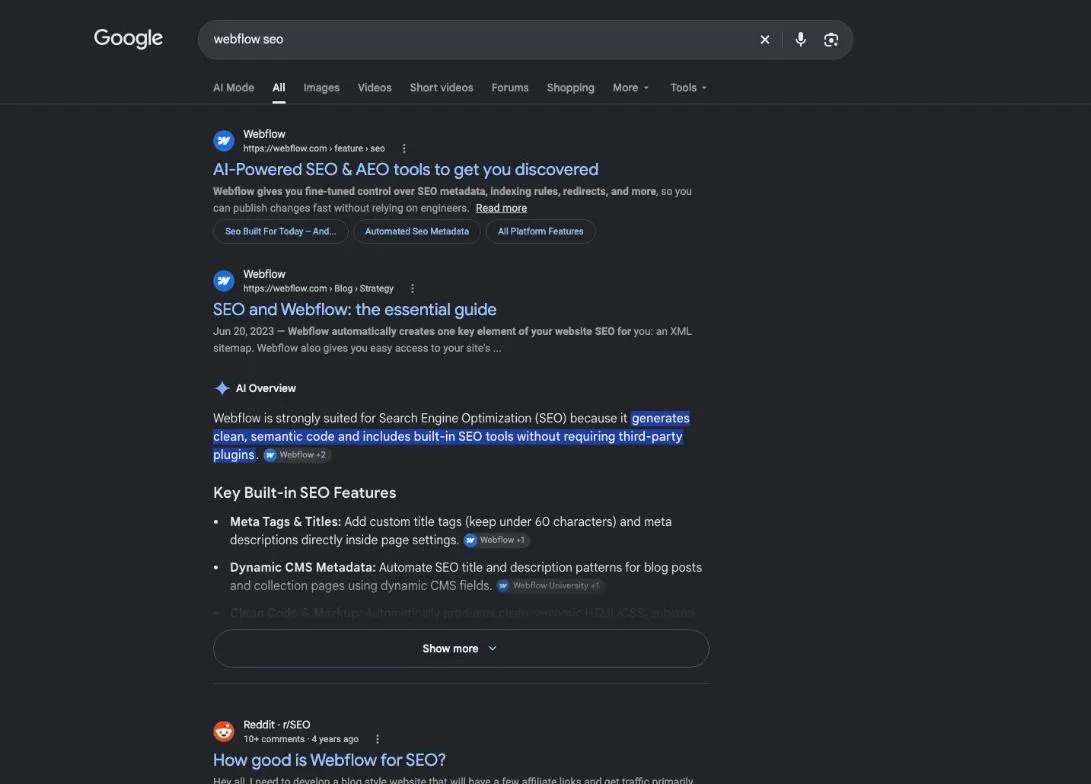
For the technical side, yes. In Webflow’s own words, it “provides a user interface to edit and optimise essential SEO elements, like meta titles, descriptions, schema markup, and 301 redirects, without requiring plugins or developer assistance.” The groundwork is still yours: knowing what your customers search for and writing pages that answer it.
What Webflow handles without a plugin
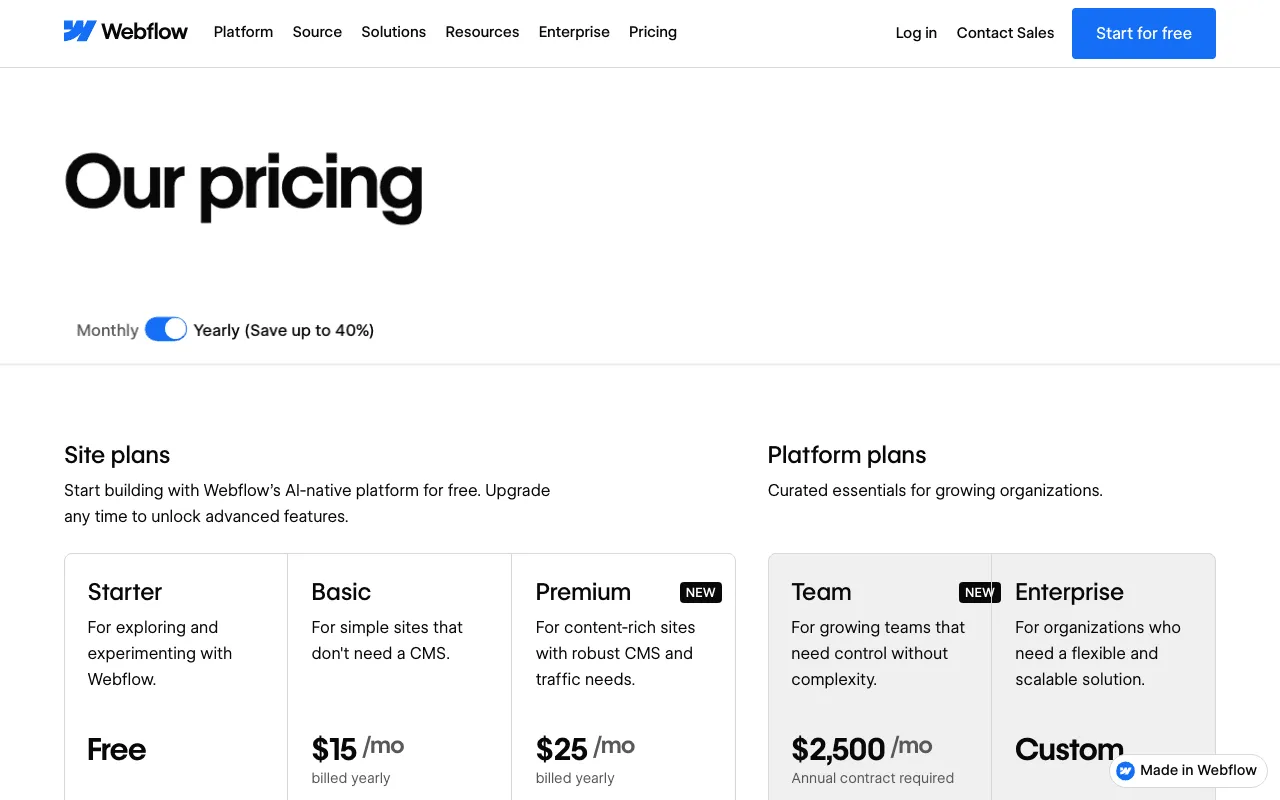
Its SEO page lists what it does on its own: an auto-generated XML sitemap, 301 redirects, schema markup (code that describes your page to search engines), titles and descriptions pulled from CMS fields, and alt text editing. On WordPress, those jobs go to a WordPress SEO plugin.
Its limits for SEO
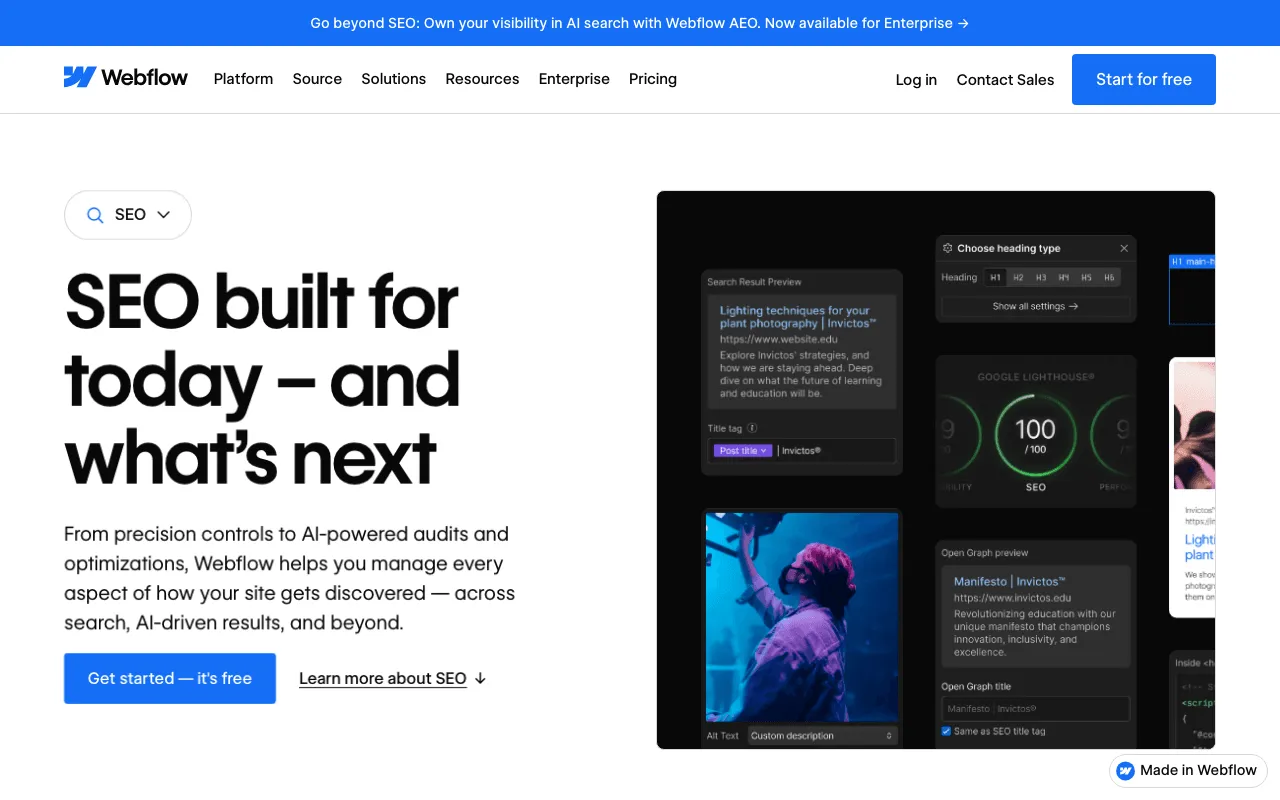
Webflow won’t choose your keywords, write your copy or earn you links. Its help warns that a new title can take “days, weeks, or even months” to show in search results, and that Google sometimes shows text from your page instead of your description. And several SEO settings sit behind a paid plan: per Webflow’s help, 301 redirects, schema markup and adding metadata need a paid Site plan or a paid Workspace. On 30 October 2026, the free Starter plan ran on a webflow.io domain; Basic cost $15 a month and Premium $25 a month, billed yearly, in US dollars, per site, plus applicable taxes.
SEO Webflow settings on each page
Webflow has no site-wide title: each page gets its own. Nothing goes live until you publish the site.
- 1 Title The headline shown in Google.
- 2 Description The text under the title.
- 3 Address The page slug.
- 4 Redirect The old address points to the new one.
- 5 Images Alt text for each one.
Titles and descriptions
Open the Pages panel, then Page settings › SEO settings. The help suggests keeping the title under 60 characters. The meta description has no limit, but search engines cut long ones. Don’t stuff either field with keywords: the help says Google ignores, and sometimes penalizes, that kind of trick.
Page addresses and permanent redirects
When you change a page’s slug, check “Permanently redirect the old URL to this new one” and Webflow creates the 301 redirect for you. Otherwise, add it under Site settings › Publishing › 301 redirects: old path, new path, then publish. Without one, anyone following an old link lands on a 404 page.
CMS collection pages
The CMS is Webflow’s content database: blog posts, products. On collection pages, you set a pattern once, for example each post’s name becomes its SEO title. On paid plans, you can also keep a single CMS item out of search engines.
Structured data: the schema markup field
Webflow now has a Schema markup field in each page’s settings, where you paste your own code or generate it with Webflow AI. Schema you already added as custom code keeps working; Webflow advises against having it in both places. Valid schema makes a page eligible for rich results, with no guarantee.
Indexing settings and the launch checklist
Webflow’s sitemap and robots.txt options
Turn on Auto-generate sitemap under Site settings › SEO › Sitemap, save and publish. Webflow then updates /sitemap.xml at every publish and adds it to your robots.txt. To hide a page, switch off Sitemap indexing in its settings: Webflow adds a noindex tag and drops it from the sitemap. Robots.txt rules go under Site settings › SEO › Indexing; that file is public, so it protects nothing. Last step: in Google Search Console, pick your property, type sitemap.xml and click Submit. WordPress handles this differently, as our WordPress sitemap guide shows.
Webflow or WordPress for SEO?
Both cover the basics. What changes is who handles each setting.
| Webflow | WordPress | |
|---|---|---|
| Title and description | in each page's settings | with an SEO plugin |
| Sitemap | toggle on, /sitemap.xml | built in, /wp-sitemap.xml |
| Hide the site | indexing settings | box on the Reading screen |
WordPress has had a built-in sitemap at /wp-sitemap.xml since version 5.5, and its Reading screen has a “Discourage search engines from indexing this site” box. For titles and descriptions, you pick a plugin, and Rank Math vs Yoast helps you choose. Webflow skips that choice, but part of its SEO toolkit is paid.
Connect Webflow to SemChat
SemChat, an SEO assistant you talk to, offers 8 connectors, one of them for Webflow.
What SemChat says its Webflow connector does
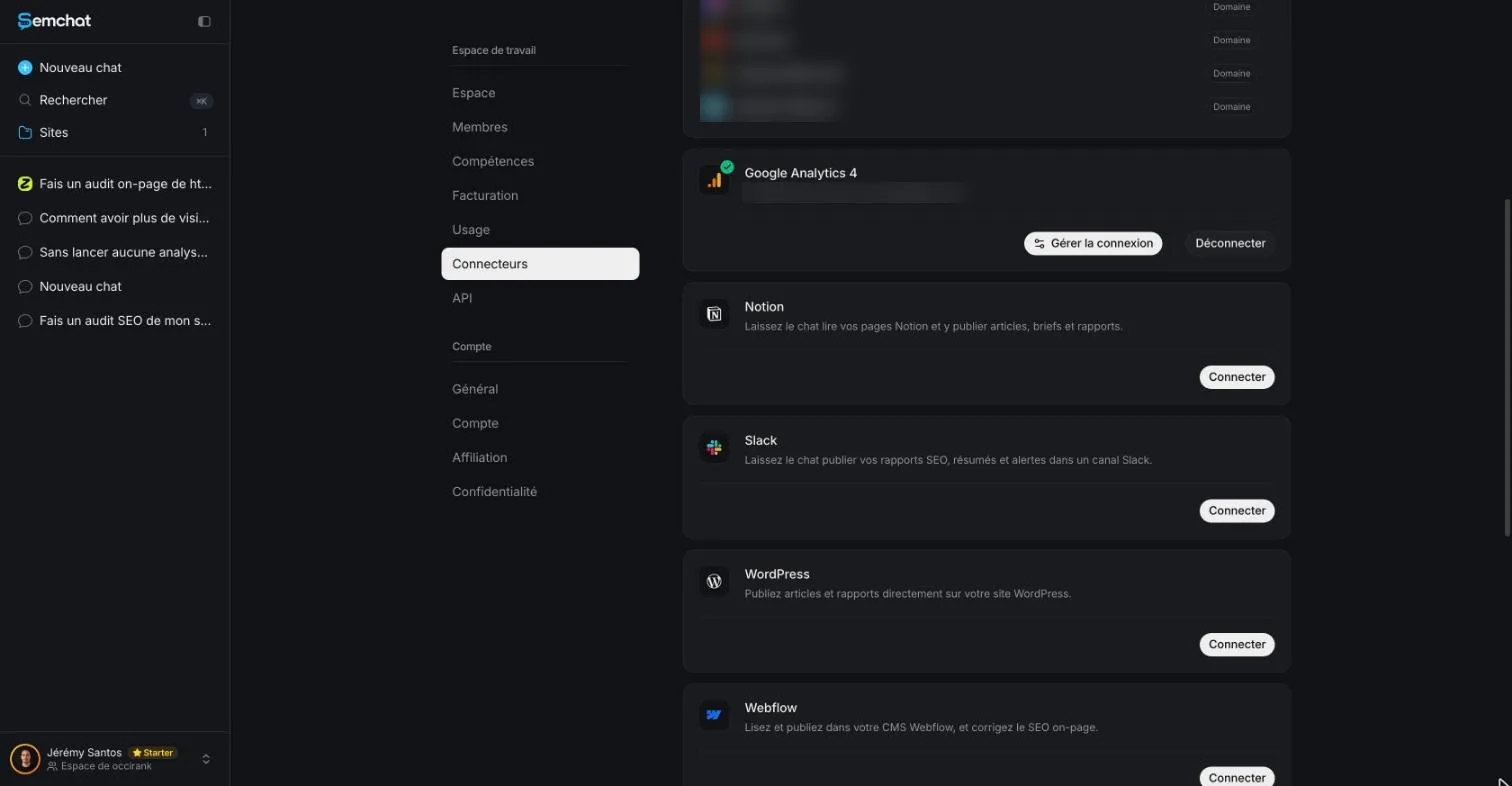
The connectors screen, in French, reads: “Lisez et publiez dans votre CMS Webflow, et corrigez le SEO on-page.” (Read and publish in your Webflow CMS, and fix on-page SEO.) Its code holds 10 Webflow tools: list pages, update their SEO, read and create CMS collections and items.
Not tested yet: what to check before relying on it
The Webflow connector was neither connected nor tested on 29 October 2026. That day, the assistant even said it had no CMS access, likely because nothing was connected. So don’t count on it to change your site. What we did test, on an Astro site: an audit started with one sentence, back in about 3 minutes with 8 KPIs and 3 actions for the week. That single audit used up the Free plan’s monthly quota. Our WordPress SEO audit page and our SemChat review cover the method.
For your Webflow SEO, keep the order: a title and description per page, a redirect for every changed address, the sitemap turned on and submitted to Search Console. The rest is your content and your links.
Frequently asked questions
How do you improve Webflow SEO?
Give every page its own title and meta description, add a 301 redirect whenever you change a page address, write alt text for meaningful images, turn on the auto-generated sitemap and submit it in Google Search Console. Then work on what Webflow can't do for you: content that answers what your customers search for, and links from other sites.
What is Webflow for websites?
Webflow is a website builder with hosting and a CMS. Its glossary says you can publish a site to a webflow.io staging subdomain for free, or add a Site plan to connect your own domain and unlock hosting features (Webflow University, read 30 October 2026).
How much does Webflow cost?
On 30 October 2026, Webflow's pricing page listed a free Starter plan on a webflow.io domain, Basic at $15 a month and Premium, which adds the CMS, at $25 a month, both billed yearly, in US dollars, per site, plus applicable taxes. Monthly billing price: missing data (planned source: webflow.com/pricing, Monthly toggle).
Can SemChat fix SEO on my Webflow site?
The app lists a Webflow connector to read and publish in the CMS and fix on-page SEO, and its code includes a tool that updates page SEO. It was neither connected nor tested on 29 October 2026, so we can't say what it really does. What we did test is the one-sentence site audit.
Let your AI do the chores of getting found online.
10% off your subscription, for life with my link, if you subscribe within 2 weeks of signing up. No code. All about the SemChat promo code
Affiliate link: it costs you nothing extra.
Verified sources
- Webflow: SEO feature page (30/10/2026)
- Webflow: pricing (30/10/2026)
- Webflow Help: add SEO title and meta description (30/10/2026)
- Webflow Help: set up redirects (30/10/2026)
- Webflow Help: create a sitemap (30/10/2026)
- Webflow Help: disable search engine indexing (30/10/2026)
- Webflow Help: set robots.txt rules (30/10/2026)
- Webflow Help: add schema markup (30/10/2026)
- Webflow University glossary: SEO (30/10/2026)
- WordPress documentation: Settings Reading screen (30/10/2026)
- Make WordPress Core: XML sitemaps in WordPress 5.5 (30/10/2026)