How to do SEO on WordPress without a developer
Here's how to do SEO on WordPress: uncheck one box, switch to readable page addresses, install one SEO plugin, submit your sitemap. Then your content does the rest. Below: what WordPress already does on its own, what a plugin sets up for you, and the one thing no plugin will do, which is decide what to write.
 By Jérémy Santos Updated on 30 October 2026 Tested on his own SemChat account: first audit on 29 October 2026.
Setting up your WordPress site for Google, one setting at a time. Illustration by Zéro Corvée.
Your site runs on WordPress, maybe you already installed an SEO plugin, and Google still sends you almost nobody. Learning how to do SEO on WordPress isn’t about tricks: a few settings you make once, then pages written for your customers. This guide gives you the order to follow, based on the WordPress documentation and Google’s guides read on 30 October 2026, with no code. The SemChat button on this page is an affiliate link.
How to improve SEO on WordPress: what it already does on its own
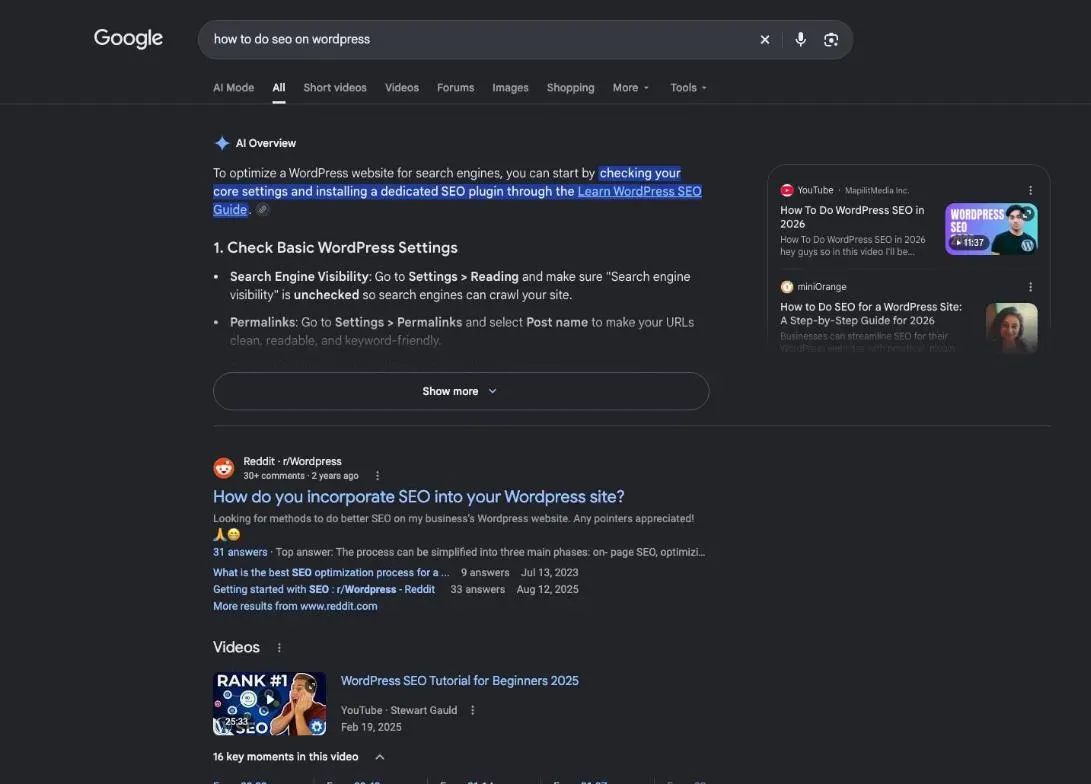
Good news: WordPress does part of the job for you. Since version 5.5, it publishes a sitemap, the list of pages search engines should know about. The WordPress team put it this way: “With version 5.5., WordPress will expose a sitemap index at /wp-sitemap.xml.” It also turns the title you type into the page title Google reads. Google’s SEO Starter Guide says it plainly: “Most CMSes can automatically turn titles you write into a title element in the HTML.”
Two settings still need a check, because the defaults don’t help you.
SEO WordPress basics: readable page addresses
Permalinks are the permanent addresses of your posts and pages. On a fresh install, WordPress uses the “Plain” structure, like yoursite.com/?p=123. Its own documentation calls that structure “not user-friendly and also not optimised for search engines,” while readable ones are “SEO-friendly and attractive.”
Go to Settings > Permalinks and pick Post name: the address then carries the title of the post. On a site that’s already live, this changes every address, so set up redirects from the old ones to the new ones first (more on redirects below).
The box that hides your site from search engines
In Settings > Reading, the “Search engine visibility” line has one checkbox: “Discourage search engines from indexing this site.” It’s meant for a site under construction. The trap is forgetting to uncheck it at launch.
According to the WordPress documentation, since version 5.3 a checked box adds a noindex, nofollow robots tag to every page, “causing search engine spiders to ignore your site.”
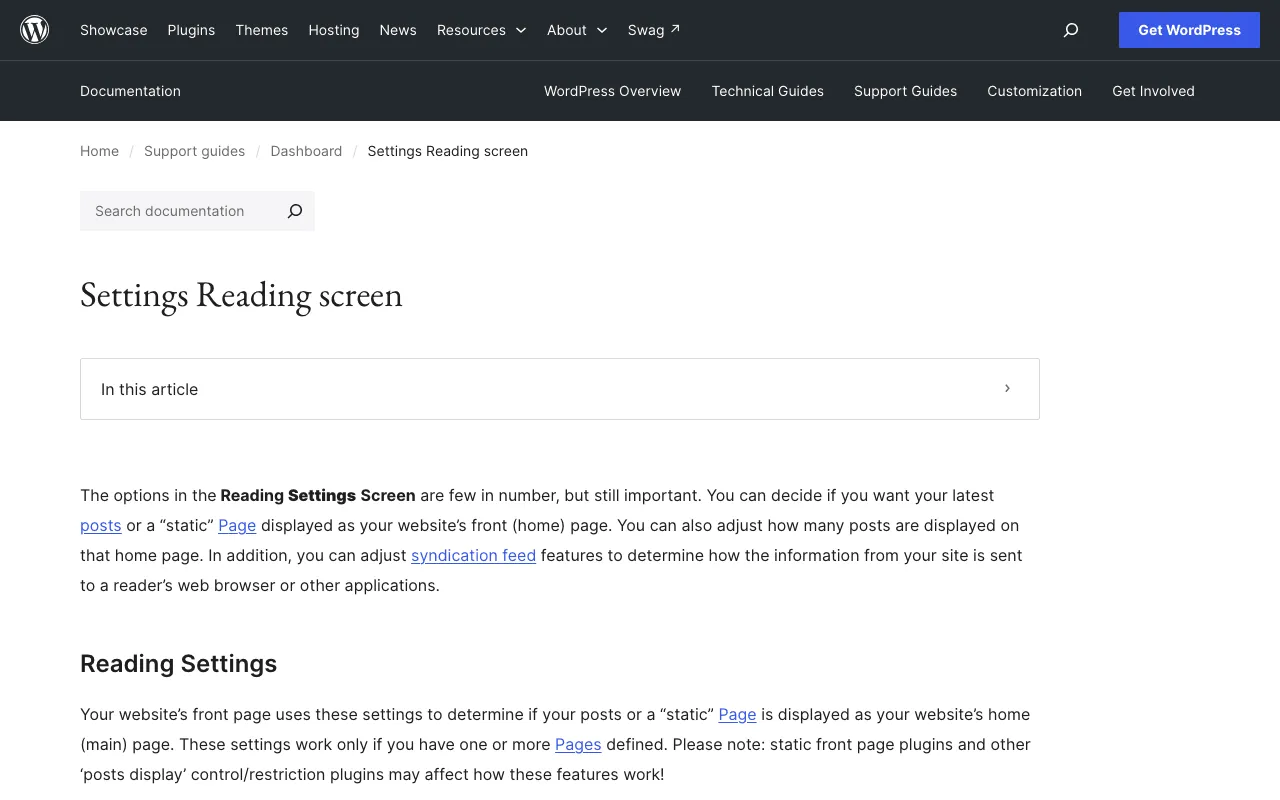
Your first move: open that screen and make sure the box is unchecked.
The steps, in order
Here’s the sequence I recommend. Each step has its own section below, or its own page.
- 1 The box Uncheck visibility in Settings > Reading.
- 2 Addresses Readable permalinks.
- 3 The plugin One SEO plugin, set up properly.
- 4 The sitemap Submit it in Search Console.
- 5 Each page Title, description, headings, images, links.
- 6 Content Answer your customers' questions, keep it current.
Optimise the content of every page
The official Learn WordPress lesson on SEO strategies gives the same starting point: plan your content around what your audience searches for, and “use your keywords naturally in your titles and the first 100 words of your post or page.”
WordPress SEO tips for every new page: title and headings
Your page title in Google (the title tag) and the big heading at the top of your page (the H1) are two different things. Your SEO plugin lets you write a title tag that differs from the post title. Google says a good title should be “unique to the page, clear and concise, and accurately describe the contents of the page.”
Break long pages into sections with clear headings. Google adds that there’s “no magical, ideal amount of headings,” and that their order doesn’t matter for its search, though it does for screen readers.
The meta description, the short summary under your title in the results, should be “short, unique to one particular page, and includes the most relevant points of the page,” per Google. Google uses it sometimes, not always.
Linking your WordPress pages to each other
Link pages that cover related topics, with link text that says where the link goes. Google explains why: “With appropriate anchor text, users and search engines can easily understand what your linked pages contain before they visit.” Skip “click here.” Name the page you’re linking to.
Easy-to-read formatting, images and FAQs
Short paragraphs, headings, lists where you list things. Every image in your Media Library has an Alternative Text field. Google describes alt text as “a short, but descriptive piece of text that explains the relationship between the image and your content.” A short FAQ that answers the questions customers really ask you on the phone fits right in.
Technical, security and speed checks
Your sitemap is already there at /wp-sitemap.xml, and the robots.txt file WordPress generates points to it, according to the 5.5 announcement. If your SEO plugin publishes its own sitemap, submit only one of them in Google Search Console. Search Console is Google’s free tool that shows which searches bring you visitors and which pages it knows; Google recommends its URL Inspection tool to check how it sees a page.
Google groups speed, mobile display and security under “page experience.” Its page on the topic points to Core Web Vitals and to the Search Console HTTPS report, which checks whether your pages are served over HTTPS (read 30 October 2026). On WordPress, speed mostly depends on your host, your theme and your plugins.
Keep your site maintained
Keep WordPress, your theme and your plugins up to date, and remove the plugins you no longer use. On content, Google says it directly: “Check in on previously published content and update it as needed, or even delete it if it’s not relevant anymore.” A price, an opening hour or a service that changed gets fixed on the page.
I already have an SEO plugin: what it does, and what it doesn’t
That’s the objection I hear most. The plugin is useful, but it only does half the job.
| The SEO plugin | You | |
|---|---|---|
| Titles | a title field per page | the words in the title |
| Description | a field per page | the summary that earns the click |
| Sitemap | published and updated | which pages deserve indexing |
| Content | an analysis of the page | the topic, the answers, the proof |
WordPress SEO optimisation: where a plugin helps
Learn WordPress suggests installing an SEO plugin “such as Yoast, RankMath, SEMrush, All-in-One SEO or SEOPress.” The plugins we compared all have a free version that sets titles, meta descriptions and the sitemap (publisher pages read 29 October and 30, 2026). Some go further: Rank Math’s free version adds redirects, a 404 monitor and Search Console data, according to its offer page.
The plugin sets things up, it doesn’t tell you what to write
A plugin tells you whether your keyword is in the title. It doesn’t tell you which keyword your customers type, which page your site is missing, or why a competitor ranks above you. Those answers come from looking at your market: a keyword tool, Search Console, an audit. Then you go back to the plugin to apply them.
SEO without a plugin: what you can still do
Without any plugin, WordPress still gives you readable permalinks, the visibility box and the built-in sitemap, per its documentation. You can also write good titles and alt text in the editor. What you lose is a dedicated field for the title tag and the meta description; that’s the main reason to install one plugin.
Common WordPress SEO mistakes
- Leaving the visibility box checked after launch: your whole site asks not to be indexed.
- Keeping Plain permalinks (
?p=123), which WordPress itself says aren’t optimised for search engines. - Changing addresses without redirects: old links and old Google results land on a 404 error. WordPress doesn’t handle redirects on its own; a plugin does, such as Redirection (wordpress.org, read 30 October 2026) or Rank Math’s free version.
- Submitting two sitemaps for the same site, the WordPress one and the plugin one.
- Worrying too much about duplicate content. Google says it’s not a violation of its spam policies, and that search engines can usually figure out the right address themselves. When you can, it recommends a redirect to the preferred address, or the canonical tag your SEO plugin sets.
- Treating E-E-A-T as a switch. Google wants content that’s “helpful, reliable, and people-first,” and suggests showing expert or experienced sources. But its Starter Guide also says E-E-A-T itself isn’t a ranking factor.
Connect WordPress to SemChat: what is confirmed
SemChat is an SEO assistant you talk to in a chat. What follows comes from our 29 October 2026 test and from the app; the full test is in our SemChat review.
The WordPress connector: announced uses, not tested yet
SemChat lists eight connectors, including WordPress and Webflow. For WordPress, the app (French interface) says “Publiez articles et rapports directement sur votre site WordPress” (publish posts and reports directly to your WordPress site). That connector was not connected on our account on 29 October 2026, so we didn’t test it. According to the app’s code, its tools list, read and create posts; none touch your SEO plugin’s settings.
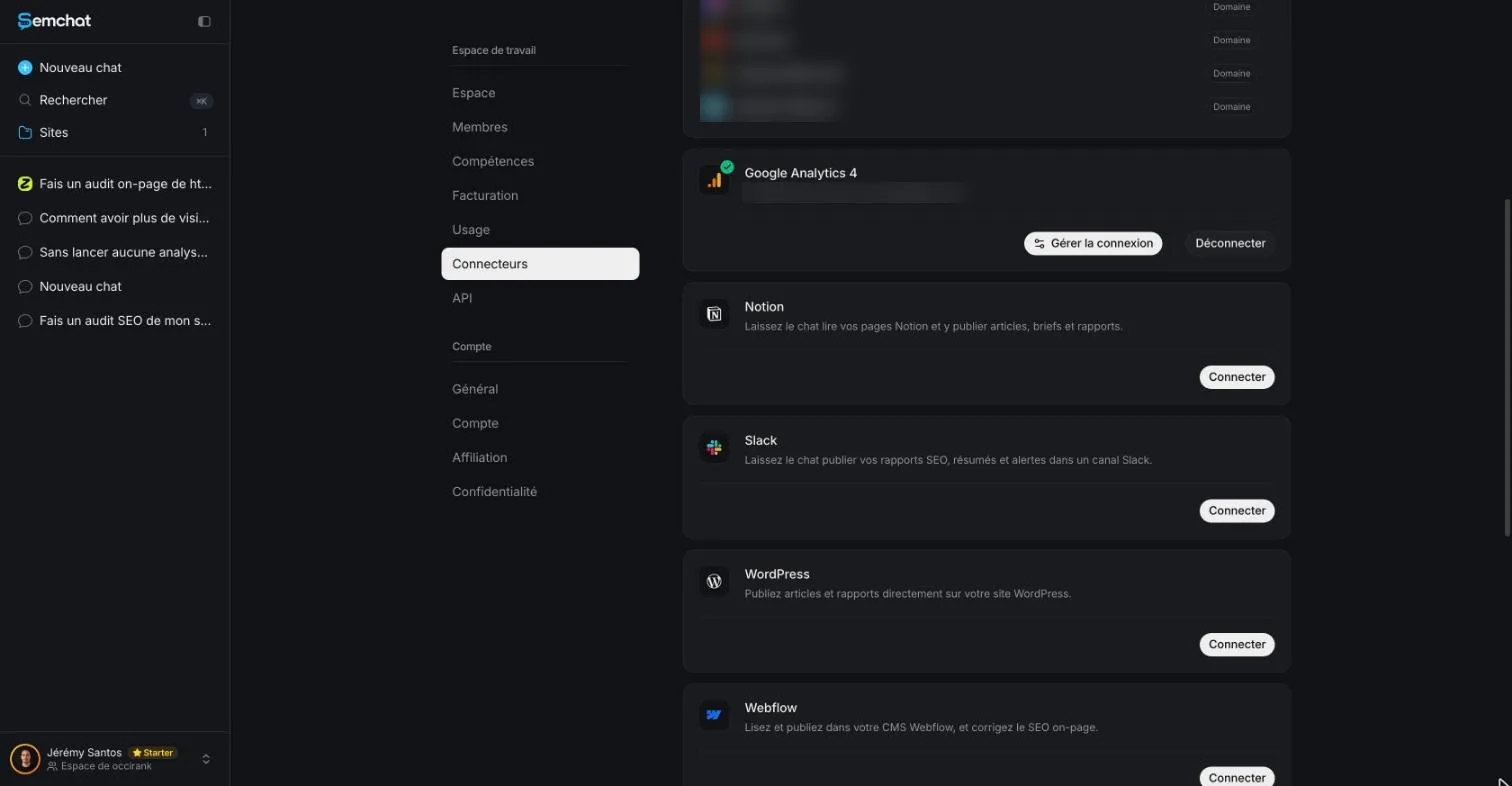
SemChat tells you what to fix, your plugin applies it
The test that matters is the audit. One sentence asking for an SEO audit of plugkit-avis.com and a clear, prioritised action plan, and in about 3 minutes SemChat returned a diagnosis and three actions for the week. The audit ran in French on a French site built with Astro, not WordPress, so WordPress-specific settings weren’t checked.
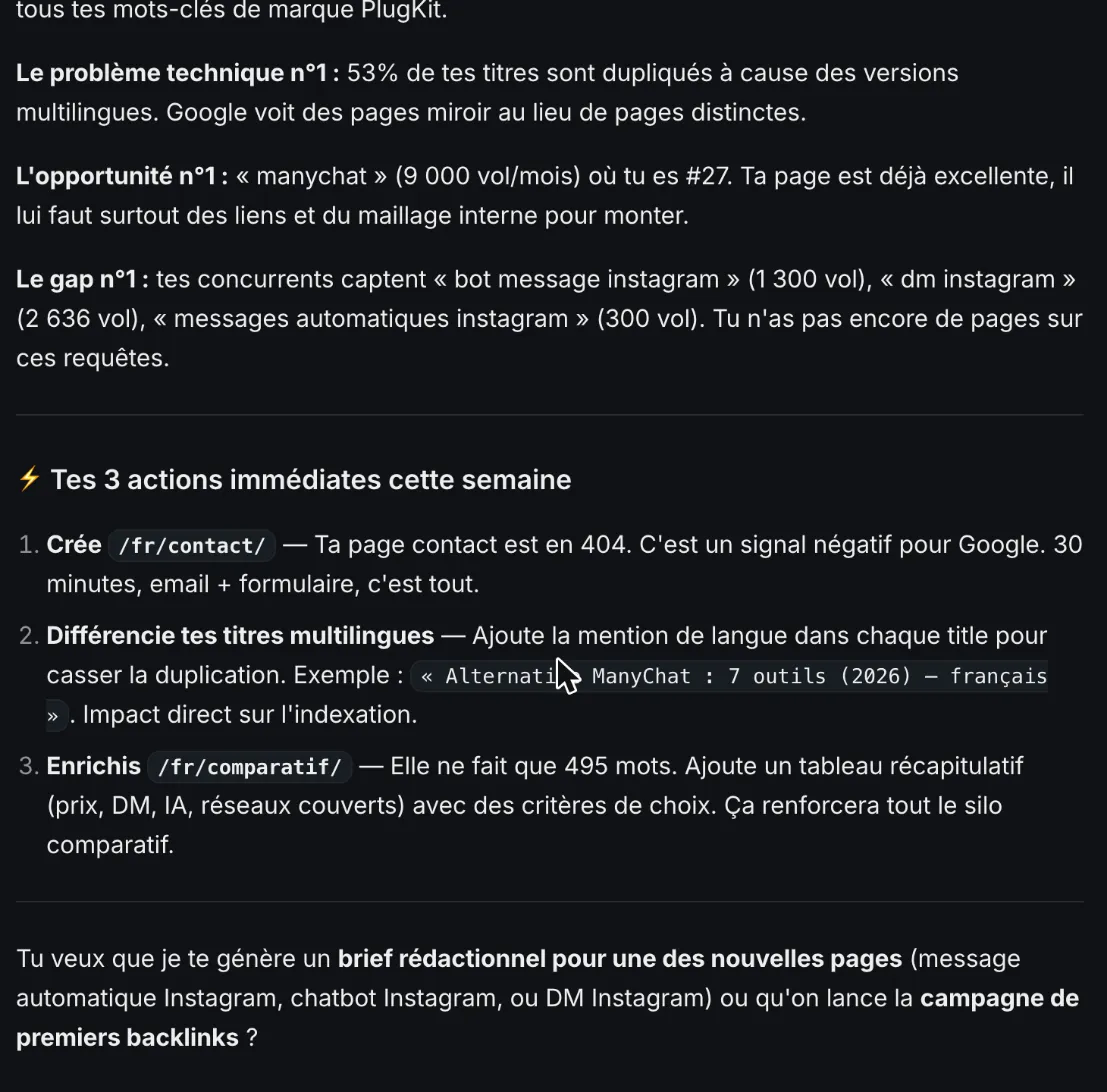
We checked its findings. The contact page returning a 404 error: correct. Duplicate titles: correct between the US and UK English pages, but those are variants declared to Google as such, so calling them “mirror pages” goes too far. Check each action before you apply it, then fix the titles in your plugin. On price, the Free plan is €0 with no credit card, but that one full audit used its whole monthly quota; the Starter plan is €20 a month before tax (see SemChat pricing, read 29 October 2026).
WordPress SEO plugin: which one for which site
Yoast SEO, Rank Math, AIOSEO, SEOPress, The SEO Framework and Slim SEO all have a free version that covers titles, meta descriptions, the sitemap and schema. First paid prices run from €49 a year (SEOPress) to €118.80 a year before tax (Yoast Premium), read 29 October and 30, 2026. The comparison by type of site is on the WordPress SEO plugin page.
Rank Math vs Yoast: the SEO plugin face-off, fact by fact
The two most-cited plugins, both free to start. Rank Math’s free version adds redirects and Search Console data; Yoast Premium costs €118.80 a year per site, Rank Math PRO €107.88 a year, before tax. The fact-by-fact table and a pick by profile are on the Rank Math vs Yoast page.
WordPress sitemap: where it is, how to create it, how to submit it
Your sitemap already exists: /wp-sitemap.xml since WordPress 5.5, or your SEO plugin’s address, such as /sitemap_index.xml for Yoast. You submit it in Search Console, then read its status. Google calls a submitted sitemap a hint, not a guarantee. The walkthrough and the common errors are on the WordPress sitemap page.
Webflow SEO: what to set up on your Webflow site, step by step
On Webflow, there’s no plugin to choose: a title and description per page, 301 redirects, a sitemap you switch on and robots.txt are all set in the tool. Some of it requires a paid plan, per Webflow’s help center read 30 October 2026. The settings one by one are on the Webflow SEO page.
WordPress SEO audit: what to check, and a full audit in one sentence
An audit starts with what WordPress handles for you: the visibility box, permalinks, a single SEO plugin, your theme and its speed, image alt text. WordPress and Google tools go a long way: Site Health, Search Console and PageSpeed Insights. The full checklist, with the SemChat demo, is on the WordPress SEO audit page.
That’s how to do SEO on WordPress in a few moves: uncheck the box, pick readable addresses, install one plugin, submit your sitemap. Then write for your customers and keep your pages current: no plugin will do that part for you.
Frequently asked questions
How do you do SEO on a WordPress website?
In this order: uncheck “Discourage search engines from indexing this site” (Settings > Reading), switch from Plain permalinks (?p=123) to readable ones (Settings > Permalinks), install a single SEO plugin, then submit your sitemap in Google Search Console. After that, write for your customers: a unique title and description per page, clear headings, alt text on images and links between related pages.
How do I get my WordPress site indexed on Google?
First make sure the visibility box in Settings > Reading is unchecked: when checked, it adds a noindex, nofollow tag to your pages (WordPress documentation, read 30 October 2026). Then add your site to Google Search Console, submit your sitemap (/wp-sitemap.xml since WordPress 5.5, or your SEO plugin's own) and inspect your key pages with the URL Inspection tool. Google decides what it indexes: a sitemap is a hint, not a guarantee.
Is WordPress SEO free or paid?
The basics are free: the visibility box, permalinks and the built-in sitemap come with WordPress. Yoast SEO, Rank Math, AIOSEO and SEOPress all have a free version that handles titles, meta descriptions and the sitemap (publisher pages read 29 October and 30, 2026). Google Search Console is free too, and PageSpeed Insights only needs your page's address. For a full audit, SemChat's Free plan is €0, but one full audit used its whole monthly quota in our 29 October 2026 test.
Is WordPress still worth it in 2026?
For a store or a small business site you want to run yourself, yes, as long as you keep it updated and don't stack plugins. It gives you the SEO basics out of the box (readable addresses, a sitemap since version 5.5) and free SEO plugins for the rest. We don't quote a market share here: we haven't read a dated study (missing data: share of websites running WordPress, planned source: a dated usage survey).
Let your AI do the chores of getting found online.
10% off your subscription, for life with my link, if you subscribe within 2 weeks of signing up. No code. All about the SemChat promo code
Affiliate link: it costs you nothing extra.
Verified sources
- WordPress: Settings Reading screen (30/10/2026)
- WordPress: Customize permalinks (30/10/2026)
- WordPress: New XML sitemaps functionality in WordPress 5.5 (30/10/2026)
- Learn WordPress: SEO strategies (lesson) (30/10/2026)
- Google Search Central: SEO Starter Guide (30/10/2026)
- Google Search Central: Creating helpful, reliable, people-first content (30/10/2026)
- Google Search Central: Understanding page experience (30/10/2026)
- Search Console Help: Sitemaps report (30/10/2026)
- Rank Math: offer and free version (29/10/2026)
- WordPress.org: Redirection plugin (30/10/2026)
- SemChat pricing (Free plan, Starter plan) (29/10/2026)