How to remove photos from Google Business Profile, even a customer's
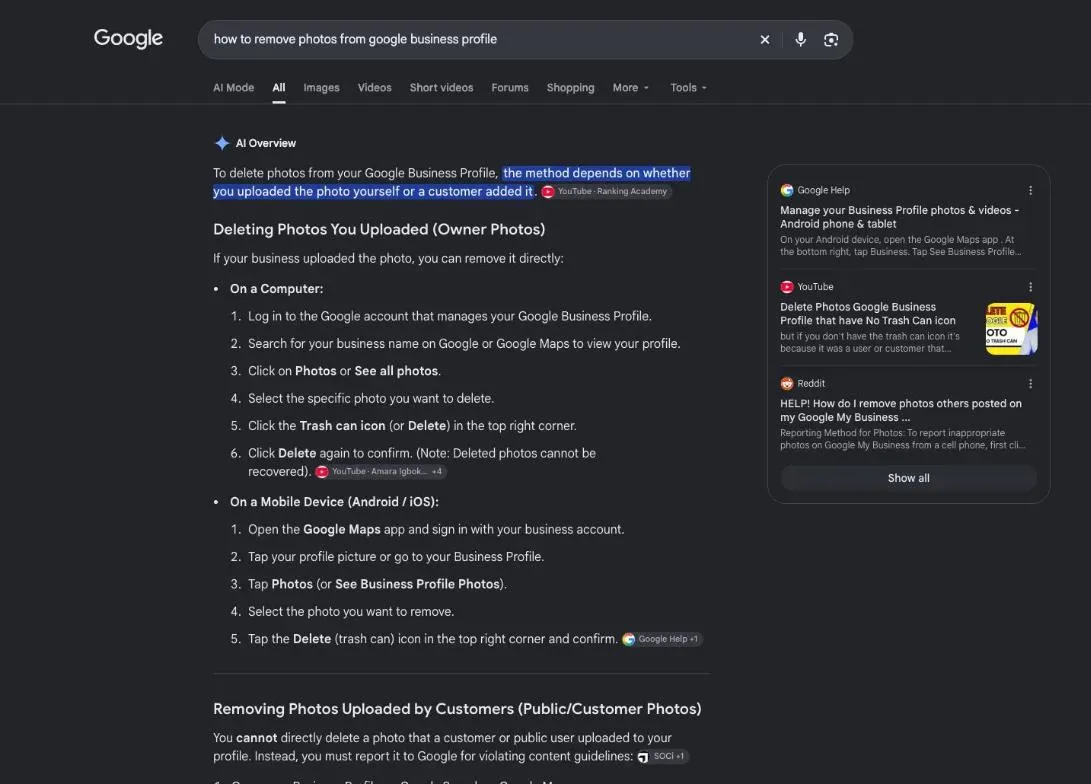
How to remove photos from Google Business Profile depends on who posted them. Your own photo, you delete yourself in two clicks from Google Search or Maps. A customer's photo, you can only report: Google reviews it and may remove it, if it breaks Google's rules.
 By Jérémy Santos Updated on October 30, 2026 Tested on his own SemChat account: first audit on October 29, 2026.
 This page is part of the guide: Google Business Profile SEO

Taking down a photo that doesn’t show your business at its best. Illustration by Zéro Corvée.
A blurry shot, a storefront from five years ago, a customer’s picture of the shop next door: on your profile, every image speaks for you. Your photos are part of your Google Business Profile SEO, so they’re worth cleaning up. Here’s how to remove photos from Google Business Profile, with one rule to remember: you delete your own, you report everyone else’s. The steps quote Google’s help pages, read on October 30, 2026. The SemChat button on this page is an affiliate link.
Who can post photos on your Google Business Profile
Two kinds of people add photos to a profile: you, the verified owner, and customers. Google’s help pages treat them as two separate cases, with two separate buttons.
Why Google lets customers add photos
Customers post what they saw: the room, the dish, the work done. Google also uses other sources when it picks your main image. It says that if your cover photo is low-quality, or “if other sources suggest that it’s not the best photo to represent your business, a user-submitted photo may be selected instead.” So a weak cover can push a customer’s photo to the front.
Can you delete any photo on your profile?
No. You can delete the photos you added. For the rest, Google writes: “You can also request to remove customer added photos.” Request, not delete: Google decides.
Not sure who posted a photo? Look before you act. Google writes that “photo source and total views show on the bottom left corner of your Business Profile photos on Search.” If the source is your business, you can delete it. If it’s a customer, you report it. And if your profile isn’t verified yet, you can’t delete anything: verification comes first.
| Your photo | A customer's photo | |
|---|---|---|
| What you do | delete it yourself | report it to Google |
| The button | Delete | Report a problem |
| The result | it's gone from your profile | Google reviews it, may remove it |
How to delete photos from Google My Business on a computer
Old name, same tool: deleting photos from Google My Business means deleting them from your Business Profile. Sign in to the Google Account that manages your profile first.
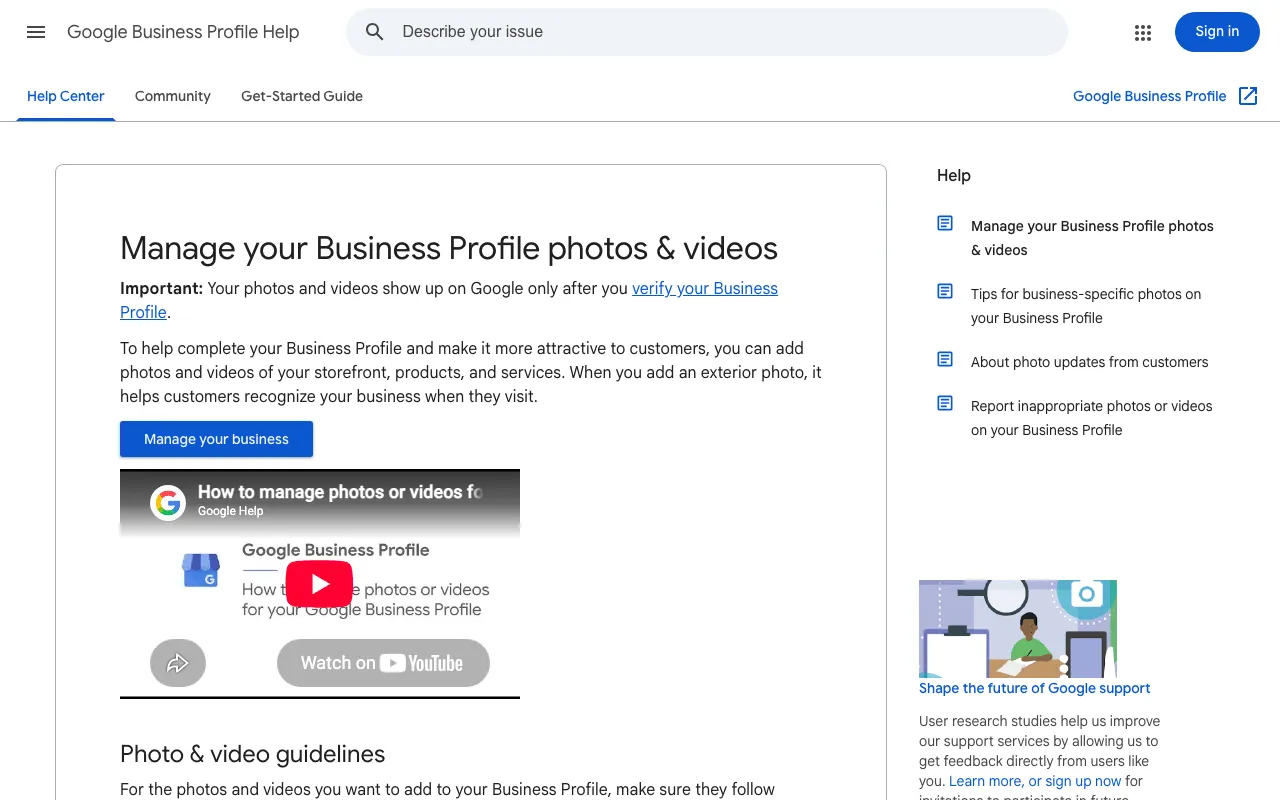
Step 1: open your profile from Google Search
“On your computer, open Google Search or Maps.” Then “search for your business’s name and city.”
Step 2: find the photo in the Photos section
“To remove a photo or video, click Photos.” Scroll and select the one you want gone.
Step 3: delete it, then check it is gone
Click Delete, then click Delete again to confirm. Reload your profile to check. If you can’t find a photo you posted, look for a duplicate: Google’s tips mention them.
- 1 Sign in The Google Account that manages your profile.
- 2 Find your business Its name and city, in Search or Maps.
- 3 Photos Scroll and pick the photo.
- 4 Delete Then confirm a second time.
How to delete photos from Google Business Profile on your phone
Using the Google Maps app instead
Google’s help has a separate tab for each phone. Both start the same way: open the Google Maps app, tap Business at the bottom right, then See Business Profile and Photos, and select the photo.
- Android: at the top right, tap Delete, then Delete again to confirm.
- iPhone or iPad: at the top right, tap More, then Delete this photo, and confirm with OK.
How to remove photos from Google Business Profile posted by customers
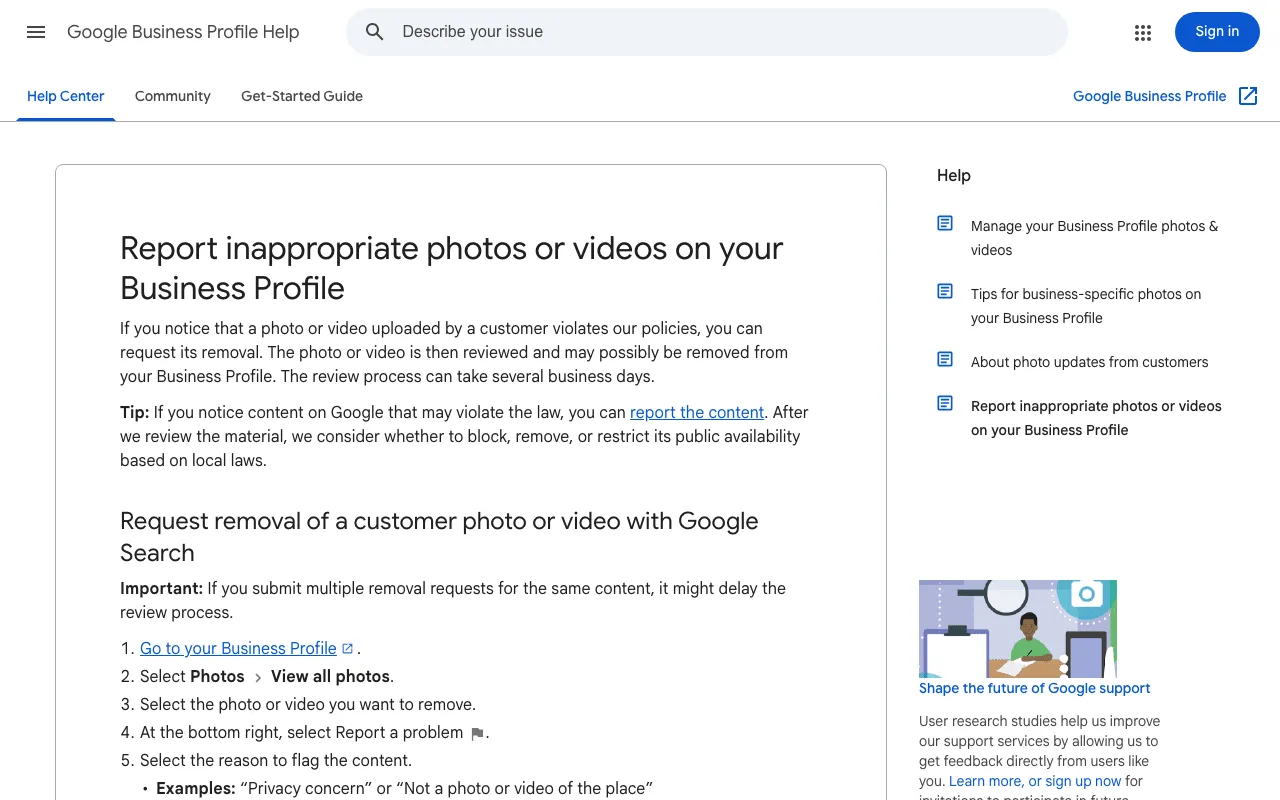
“If you notice that a photo or video uploaded by a customer violates our policies, you can request its removal,” Google writes. “The review process can take several business days.”
Report the photo to Google
From Google Search:
- Go to your Business Profile.
- Select Photos, then View all photos.
- Select the photo or video you want to remove.
- At the bottom right, select Report a problem.
- Select the reason, for example “Privacy concern” or “Not a photo or video of the place”.
- Select Submit.
In the Google Maps app, it’s More, then Report, with reasons like “Spam” or “Personal information”. One warning from Google: “If you submit multiple removal requests for the same content, it might delay the review process.”
What to do when Google says no
Google removes what breaks its photo policies, not what you dislike. If a photo stays, you have two moves left. First, if you think it breaks the law, Google has a separate path: “If you notice content on Google that may violate the law, you can report the content,” and it decides based on local laws. Second, bury it: post better photos, and collect fresh reviews. Our guide to the Google review link shows how to ask customers for them. Google also lets you report a user profile that keeps posting content against its rules.
Clear out old photos and add better ones

Replacing a poor photo with one that shows your business as it really is. Illustration by Zéro Corvée.
Deleting without replacing leaves room for other people’s photos. Google says an exterior photo “helps customers recognize your business when they visit.” Photos are one of the settings covered in our guide to Google Business Profile optimization, and one piece of local SEO for small business.
How to add pictures to your profile
On your computer: open Google Search or Maps, search for your business, click Photos, then Add photos. For the cover or logo, click Change cover or Change logo. “It can take up to 24–48 hours before your photos and videos show on your Business Profile.” And they only show once the profile is verified: if yours isn’t yet, start with how to add your business to Google.
After an upload, Google checks each photo against its policies and shows a status. “Pending” means it’s still processing, or your profile isn’t verified: customers don’t see it. “Not approved” means it was flagged and won’t show. “Live” means customers can see it on Search and Maps. If a new photo stays pending for days, check your verification first.
Photo sizes for your cover and your logo
Google gives one set of rules for all Business Profile photos. It doesn’t list separate sizes for the cover and the logo on the page I read.
| Guideline | Value |
|---|---|
| Format | JPG or PNG |
| File size | between 10 KB and 5 MB |
| Recommended resolution | 720 px by 720 px |
| Minimum resolution | 250 px by 250 px |
Google adds that a photo “should be in focus and well lit”, with no heavy edits or filters: “the image should represent reality.” If your logo doesn’t show, Google’s checklist is name, a valid street address, categories, phone number and opening hours.
That’s how to remove photos from Google Business Profile: your own in two clicks, a customer’s through a report. And every time you take one down, put a better one up.
Frequently asked questions
How do you delete a photo from Google Maps?
If you posted it on your Business Profile: in the Google Maps app, tap Business at the bottom right, then See Business Profile and Photos, pick the photo, and tap Delete (Android) or More, then Delete this photo (iPhone), and confirm (Google help, read October 30, 2026). A customer's photo can't be deleted, only reported.
How do you add a video to your Google Business Profile?
The same way as a photo: on your computer, open Google Search or Maps, search for your business, then click Photos and Add photos and pick the video. Google's limits: up to 30 seconds long, up to 75 MB, and 720p or higher. It can take 24 to 48 hours to show.
How do you upload a photo to Google?
For your business: on your computer, open Google Search or Maps, search for your business's name and city, click Photos, then Add photos, and select one or more files. Google wants JPG or PNG, between 10 KB and 5 MB. Your photos only show once your profile is verified.
Can you remove a photo attached to a customer's review?
Not yourself: it's the customer's content. You can report the photo like any customer photo, with Report a problem and a reason, or report the whole review if it breaks Google's policies. Google reviews the request; removal isn't guaranteed.
Let your AI do the chores of getting found online.
10% off your subscription, for life with my link, if you subscribe within 2 weeks of signing up. No code. All about the SemChat promo code
Affiliate link: it costs you nothing extra.
Verified sources
- Google Business Profile Help: Manage your Business Profile photos & videos (computer, Android, iPhone) (30/10/2026)
- Google Business Profile Help: Report inappropriate photos or videos on your Business Profile (30/10/2026)
- Google Business Profile Help: Report inappropriate reviews on your Business Profile (30/10/2026)