WordPress SEO audit: what to check, and a full audit in one sentence
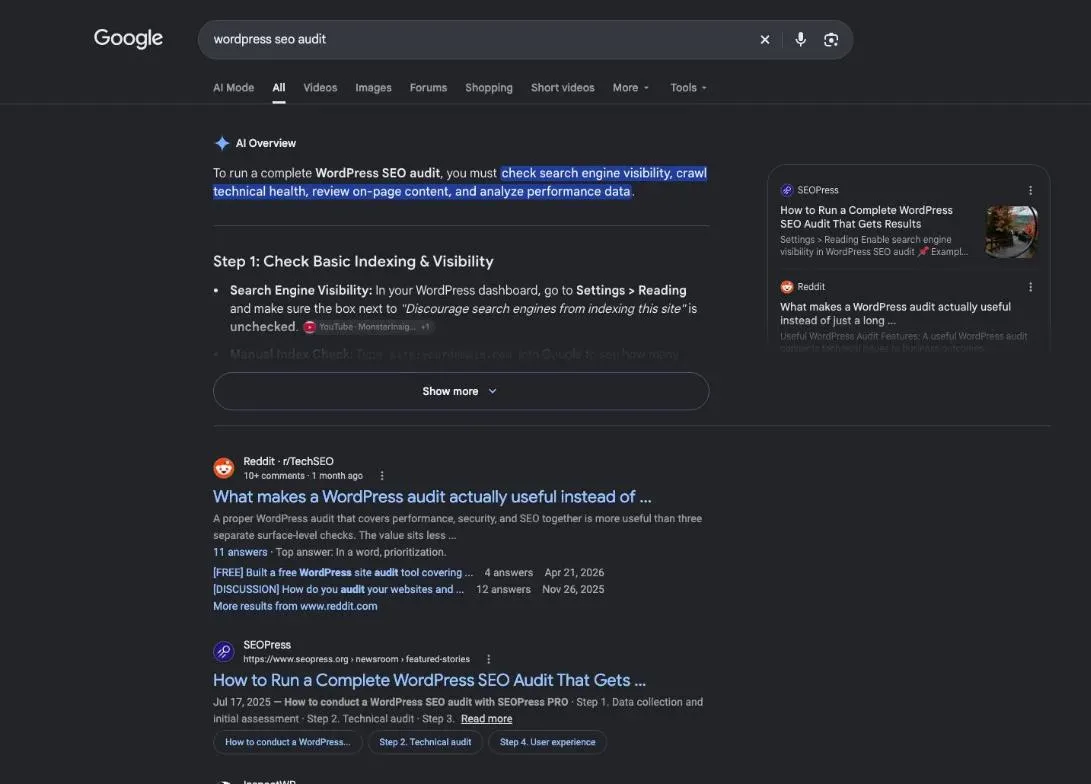
A WordPress SEO audit starts with what WordPress sets up for you: the box that can hide your whole site from search engines, your permalinks, your SEO plugin, your theme and your images. Then it reviews your pages, like on any other site. Here is the checklist, the free tools from Google and WordPress, and a real audit run in one sentence with SemChat.
 By Jérémy Santos Updated on October 30, 2026 Tested on his own SemChat account: first audit on October 29, 2026.
 This page is part of the guide: How to do SEO on WordPress

Going over your WordPress site, point by point. Illustration by Zéro Corvée.
Your site runs on WordPress, it has been live for a few months or a few years, and Google sends you very few visitors. Before you switch themes or install yet another plugin, run a WordPress SEO audit: a point-by-point review of what could be holding your site back. This page is part of our guide on how to do SEO on WordPress, and it covers what is specific to WordPress. Every setting quoted here comes from the official documentation, read on October 30, 2026. The SemChat buttons on this page are affiliate links.
Why WordPress sites have their own SEO traps
WordPress does a lot on its own. It builds your page addresses, serves a robots.txt file, publishes a sitemap and creates archive pages for your categories, tags and authors. Most of the time, that’s convenient. But each of these automatic features has a setting, and one wrong setting can cost you traffic without anything looking different on screen.
Three examples, straight from the WordPress documentation:
- one box in the reading settings asks search engines not to index your whole site;
- the default permalinks, like
?p=123, are, in WordPress’s own words, “not user-friendly and also not optimized for search engines”; - plugins “have deep access to your site, so it’s vital to keep them up to date,” says the Site Health documentation.
Then come your theme, your hosting and your images. General audit guides skip most of this.
| On any site | Extra on WordPress | |
|---|---|---|
| Indexing | indexed pages, robots.txt, sitemap | the reading setting box |
| Addresses | readable URLs | the permalink setting |
| Tags | title, description, headings | the SEO plugin that writes them |
| Speed | Core Web Vitals | theme, plugins, hosting |
The general audit method for any site
Every audit follows the same logic: set a goal, check that Google can read your site, review your pages and links, then sort the fixes by priority. That method has its own page, our SEO audit checklist, which also covers auditing any site for free and reading the report. Here, I assume you know it, and I add the checks that only matter on a WordPress site.
SEO audit WordPress: the tools you need
You don’t need a subscription to start. Three kinds of tools are enough: Google’s, the ones WordPress and your SEO plugin already give you, and, if you want to go further, an online suite.
Google’s free tools
Search Console tells you which pages Google has indexed, and why others aren’t. Its help page has good advice for small sites: “If your site has fewer than 500 pages, you probably don’t need to use this report.” Instead, Google suggests searching for site: followed by your domain, to see the pages it knows about.
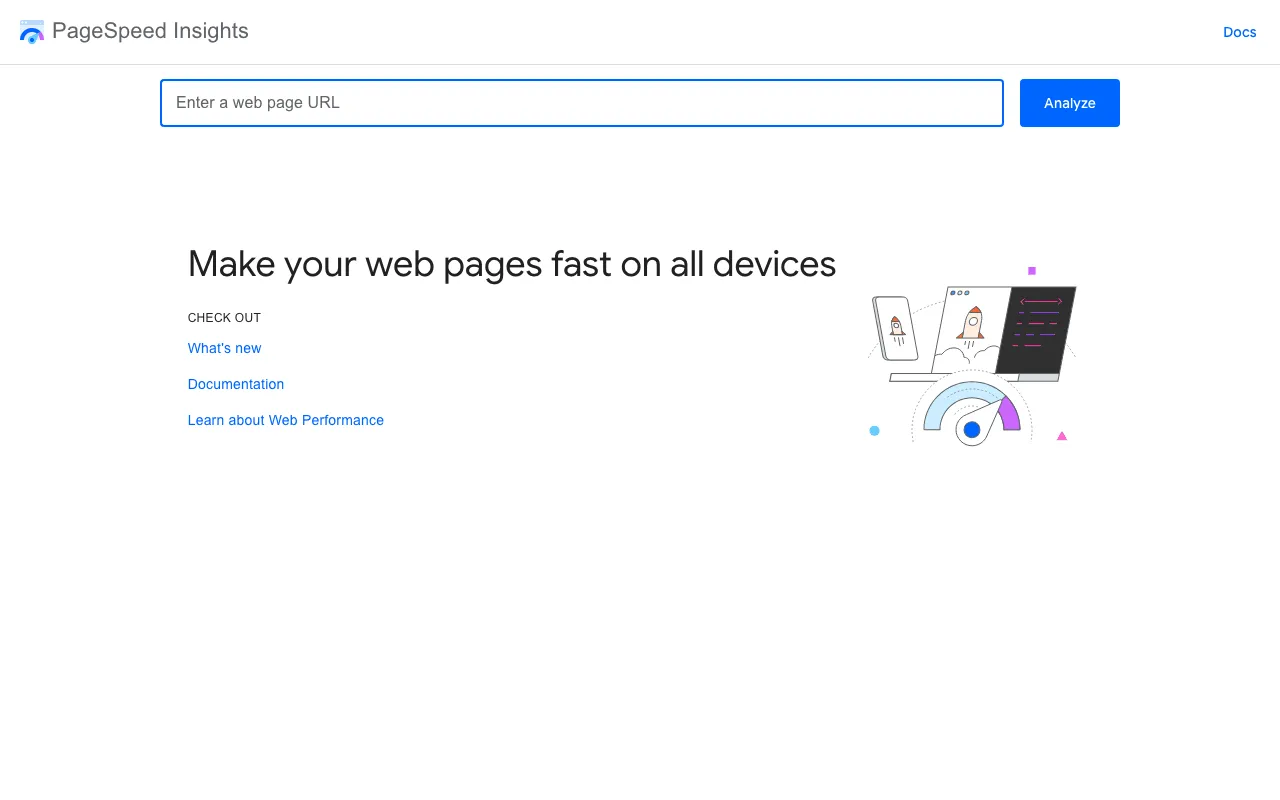
PageSpeed Insights “reports on the user experience of a page on both mobile and desktop devices, and provides suggestions on how that page may be improved,” according to its documentation. It mixes two kinds of data: lab tests run in a controlled setting, and the experience of real Chrome users over the last 28 days. A new or rarely visited page may not have enough real-user data; the tool then falls back to the whole site, or shows none.
Audit plugins inside WordPress
Your first audit tool is already installed. Under Tools, the Site Health screen runs a diagnosis of your setup. The WordPress documentation says it groups what it finds into critical issues, recommended improvements and passed tests.
Its Info tab answers questions that matter for SEO:
- Is this site using HTTPS?
- What is the permalink structure?
- Is this site discouraging search engines?
- Which plugins and themes are installed but inactive?
The Info tab only shows information: you can’t change settings from it. The documentation tells you which settings screen to open for each answer.
Your SEO plugin may add its own page analysis on top. To see what each plugin offers, based on its official page, read our comparison of the WordPress SEO plugin options.
Rank Math’s built-in SEO analysis
Rank Math is one example of a plugin with an audit built in. According to its file in our research, dated October 29, 2026:
- the free plugin includes an SEO analysis advertised as “30+ Detailed SEO Tests”; its help page says the basic tests run on your homepage and sort results into passed tests, warnings and failed tests;
- a competitor analysis (“Perform 25+ SEO checks on any competitor’s site”) needs the PRO plan;
- a free online SEO Analyzer on rankmath.com produces a downloadable PDF report;
- pricing: the plugin is free; PRO lists a standard price of €8.99 a month billed yearly (€107.88 a year before tax) and Business €27.99 a month billed yearly.

One limit worth knowing: its research file found no page describing a prioritized action plan. The analysis lists tests and explains each one; deciding what to fix first is still up to you.
Crawlers and online suites
Online suites and crawlers look at your site from the outside, the way a search engine robot does. You’ll also come across Screaming Frog and Ahrefs; I don’t describe them here because I haven’t read and dated their pages for this guide. Semrush, according to its file dated October 29, 2026:
- its Site Audit tool is included in all paid plans; the first one, SEO, showed €134 a month when viewed from France, taxes extra;
- its Free plan, shown at $0 with no credit card, gives 10 reports a day and 1 demo project;
- a free SEO Checker works without signing up;
- Yoast and AIOSEO, two WordPress plugins, are listed among its partner integrations.
Its page for solopreneurs promises “a prioritized fix list in minutes.” I haven’t tested it on a WordPress site.
Check your SEO plugin, permalinks and theme
These three settings affect every page at once, so check them before you look at any single page.
- 1 Hosting Does the server answer quickly?
- 2 Theme Do your pages pass Core Web Vitals?
- 3 SEO plugin Just one, set up properly.
- 4 Permalinks Readable page addresses.
- 5 Images Light files with alt text.
One SEO plugin, set up properly
The SEO plugin is where you write a title tag and a meta description for each page, and where you decide what search engines get to see. Two checks:
- only one SEO plugin active: two plugins writing the same tags can create duplicates. Open your plugin list and make sure only one is on;
- its settings reviewed: which pages it puts in the sitemap, and which ones it keeps out of search engines.
Can’t decide between the two best-known options? Our Rank Math vs Yoast face-off compares them fact by fact.
Permalinks: readable page addresses
Permalinks are the permanent addresses of your posts, pages and archives. When you install WordPress, the default setting is Plain, which looks like example.com/?p=123. The documentation calls it “not user-friendly and also not optimized for search engines.” By contrast, it says, “Pretty Permalinks are SEO-friendly and attractive.”
The check: go to Settings > Permalinks. If your addresses contain ?p=, the Post name option builds them from the title of each post. Be careful on a site that is already live: changing the structure changes every address. Links from other sites and pages Google has already indexed will point to the old ones. Set up 301 redirects from the old addresses to the new ones before you touch this setting.
Your theme, speed and Core Web Vitals
Start with the server. PageSpeed Insights shows its response time as Time to First Byte (TTFB), which Google lists there as an experimental metric. Measure it on your homepage and your key pages. The Site Health Info tab also describes your server setup, your database and your file permissions: something to show your host if in doubt.
Then the theme. It decides how each page loads and displays. Google measures that experience with three metrics, the Core Web Vitals, and gives targets for a good experience (Search Central, read October 30, 2026):
- LCP, loading: the largest visible element shows up within the first 2.5 seconds;
- INP, responsiveness: under 200 milliseconds;
- CLS, visual stability: a score under 0.1.
Google is direct about it: “We highly recommend site owners achieve good Core Web Vitals for success with Search and to ensure a great user experience generally.” Test one page of each kind in PageSpeed Insights: your homepage, a blog post, a product page if you sell. Thinking about a new theme? Run its demo page through the same tool before you install it. Site Health also lists the inactive themes still installed.
How your site looks on a phone
PageSpeed Insights gives you a mobile result and a desktop result for every page. Read the mobile one first: that’s how visitors see your theme on a small screen. Then open your site on your own phone and check the basics yourself: menus that open, text you can read without zooming, buttons you can tap.
10% off your subscription, for life with my link, if you subscribe within 2 weeks of signing up. No code. All about the SemChat promo code
Try SemChat for free Free plan, no credit card. Affiliate link: it costs you nothing extra.
Indexing: what Google is allowed to see
The reading setting that hides your site from search engines
This trap is a single checkbox. In Settings > Reading, under Search engine visibility, WordPress shows a box labeled “Discourage search engines from indexing this site.” The documentation explains it: “Check the Discourage search engines from indexing this site box to ask search engines not to index this site.” The same box appears during installation.
Since version 5.3, a checked box adds a robots meta tag set to noindex, nofollow to your pages, “causing search engine spiders to ignore your site,” according to the same page.
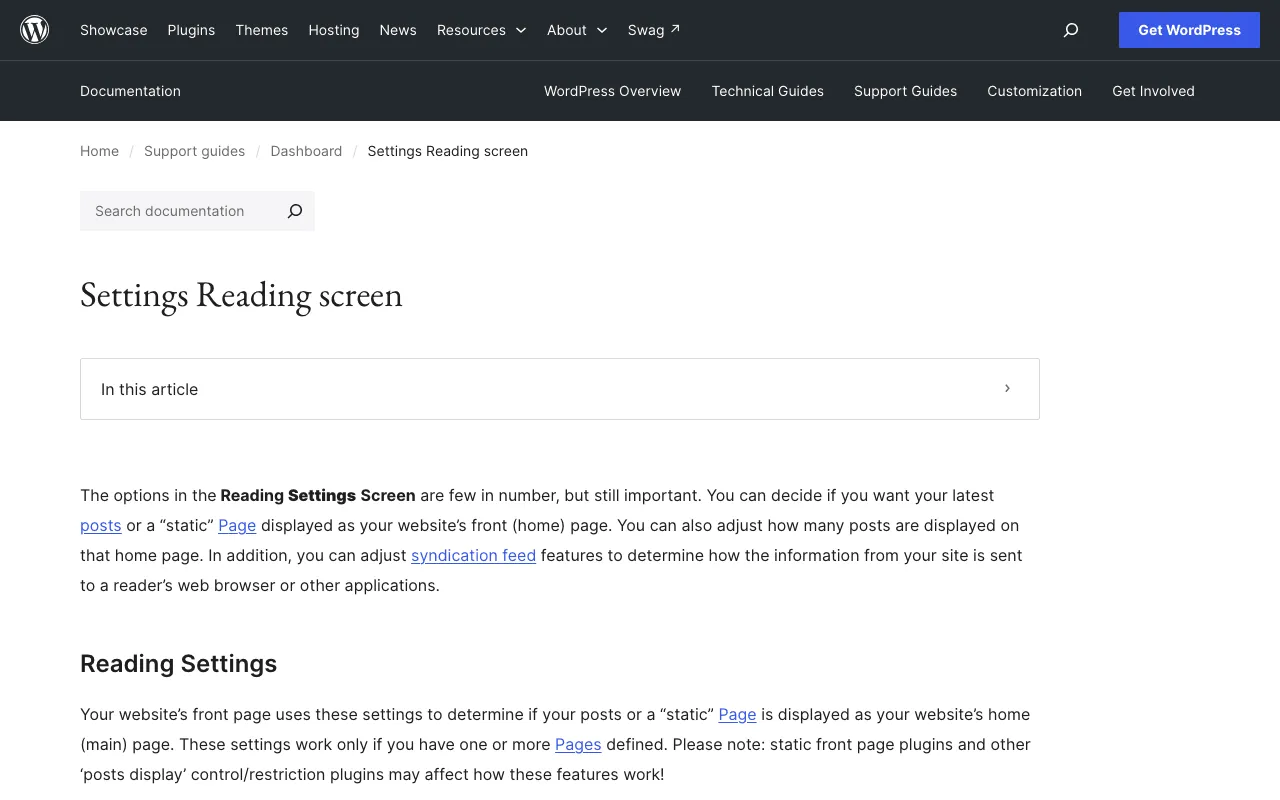
The box is meant for a site under construction. The risk is forgetting it when you go live. It doesn’t protect private pages either: the settings screen itself notes that “even when set to discourage search engines, your site is still visible on the web and not all search engines adhere to this directive.”
The check takes a minute: the box must be unchecked. Site Health gives you the same answer on its Info tab.
Your sitemap and robots.txt
Since version 5.5, “WordPress will expose a sitemap index at /wp-sitemap.xml,” according to the release announcement. By default, it lists your public post types and taxonomies, your author archives and your homepage. An SEO plugin may publish its own sitemap at another address: check its settings to know which one to submit to Google. Where to find it and how to submit it is covered in our WordPress sitemap guide.
The robots.txt file tells crawlers which URLs they can access. Google spells out its limit: “it is not a mechanism for keeping a web page out of Google.” For that, you need a noindex tag or a password. Google also notes that with a CMS, you might not need to, or be able to, edit robots.txt directly.
The check: open yourdomain.com/robots.txt in your browser. A Disallow: / line under User-agent: * blocks crawling of the whole site. That’s what the visibility box used to produce up to WordPress 5.2, says the documentation. Since 5.5, WordPress’s robots.txt also points to your sitemap index.
Pages WordPress creates on its own: tags, archives, attachments
Every category, tag and author gets its own archive page. On a one-person blog, the author archive can repeat the whole blog. A tag used once creates a page that is nearly empty. The Media Library documentation also mentions attachment pages, which some themes or plugins display for a media file.
For each type, ask one question: does this page help someone arriving from Google? To see which ones Google knows, search for something like site:yourdomain.com/tag/. If they add nothing, check whether your SEO plugin lets you keep them out of the sitemap and the index.
If your site has more than 500 pages, open the Page indexing report in Search Console. Google’s help sums up what to look for: “Most sites have at least a few unindexed pages, but all of your important pages should be indexed.” For one specific page, Google points you to the URL Inspection tool.
Page by page: titles, descriptions, headings and images
Once the site-wide settings are right, review your pages one by one, starting with the ones that matter most to your business.
Title tags and meta descriptions
Each page needs its own title tag, with the search it targets near the start, and a meta description that makes people want to click. Your SEO plugin is where you write both. Duplicate titles are worth hunting: they came up in the real audit of my site, further down this page.
Main heading and subheadings
One main heading (H1) per page, then subheadings that follow the outline of the page. Check that the content actually answers the question in the title, and that it’s up to date. For deeper technical checks, such as error codes and markup, follow our technical SEO checklist.
Images and their alt text
In the Media Library, each image has an Alt Text field. WordPress describes it as text that describes the media, “Used for accessibility.” Google goes further: “The most important attribute when it comes to providing more metadata for an image is the alt text.” It also warns against filling alt attributes with keywords, which “may cause your site to be seen as spam.”
What to check:
- images without alt text, starting with your most visited pages;
- file names: Google advises names that are “short, but descriptive”;
- heavy images: see whether PageSpeed Insights mentions them in its suggestions.
Links: internal links, broken links, backlinks
Broken links on a WordPress site
Links between your pages help visitors, and Google, find the pages that matter. Every important page should receive links from your other pages, with link text that describes the page it points to rather than a vague “click here.”
Broken links appear quickly on a WordPress site: after a permalink change, a deleted page or a big clean-up. Rank Math’s research file lists a link report that detects broken links and orphan pages in PRO or with Rank Math AI. A crawler or a full audit will find them too.
Your link profile
Backlinks are links from other sites to yours. You can’t fix them from WordPress, but an audit should still tell you where you stand. In the real audit below, SemChat looked at the backlink profile of my site and found 1 referring domain. Semrush’s file lists backlink analysis among its features, including auditing a backlink profile and spotting toxic links. Treat these figures as estimates from a third-party tool, not as Google’s own view.
Security, structured data and AI readiness
HTTPS on every page
Site Health tells you whether your site uses HTTPS. If it doesn’t, WordPress recommends switching, and says that since version 5.7 you can do it easily. On Google’s side, the page experience documentation points to Search Console’s HTTPS report, which checks whether your pages are served securely.
Site Health also flags plugins waiting for an update. The WordPress documentation on plugins doesn’t set a maximum number, and I won’t make one up. The real question is whether each active plugin still earns its place. To clean up: check the inactive plugins in Site Health, click Deactivate then Delete for the ones you don’t need, and test a page in PageSpeed Insights before and after each big change, caching plugins included. If something breaks after an install, WordPress suggests deactivating plugins one at a time until you find the culprit.
Schema markup from your plugin
Structured data, or schema markup, describes your content to search engines in a format they can read: an article, a product, a business. On WordPress, your SEO plugin usually handles it. Rank Math’s file, for instance, lists 18 predefined schema types in its free plugin, plus an llms.txt file among its free features. Check which schema types your own plugin adds, and that they match what each page really is.
Demo: a full audit in one sentence with SemChat
On October 29, 2026, on my SemChat account on the Free plan, I typed one sentence, in French: “Fais un audit SEO de mon site plugkit-avis.com et donne-moi un plan d’action clair, par priorité.” (Run an SEO audit of my site plugkit-avis.com and give me a clear action plan, by priority.) SemChat picked its “Audit SEO Complet” (full SEO audit) skill on its own, then chained its checks: page reading, a full site crawl, a domain overview, rankings, top pages, backlink profile, competitors, a gap analysis against 5 competitors and ranking history.
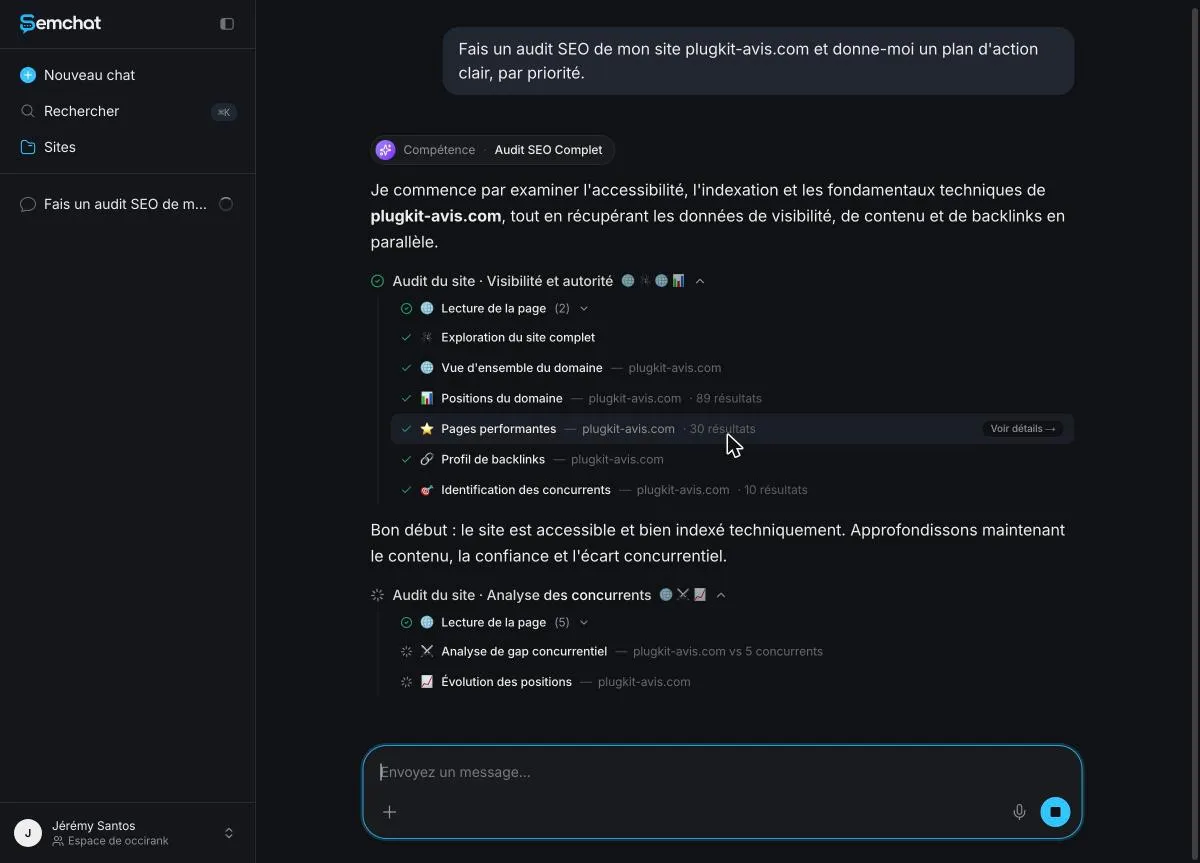 One sentence typed, then the checks SemChat ran on its own during the audit (French interface). Screenshot of the SemChat app (Jérémy’s account, Free plan), audit of October 29, 2026.
The result: 8 key figures, a diagnosis, 3 actions for the week and a 10-section document you can copy or download.
The site tested is not on WordPress: what still applies
To be clear: plugkit-avis.com is built with Astro, not WordPress, and the audit was run in French on a French site. The WordPress-specific checks (SEO plugin, theme, reading setting) were not tested. What applies to any site, WordPress included: a page returning a 404 error, duplicate titles, indexing, rankings, backlinks and competitors.
On the WordPress side, the SemChat app lists a connector that, according to the app, publishes articles and reports on your site. Its code includes three WordPress tools: list, read and create a post. I haven’t connected it, so I haven’t tested it. SemChat doesn’t replace your SEO plugin: it tells you what to fix, and you fix it in WordPress. If your site runs on Webflow, its own settings are covered on our Webflow SEO page.
The time it took: about 3 minutes
About 3 minutes passed between sending the sentence and getting the action plan, as timed on screen. I didn’t choose a skill or a tool myself. For a non-technical site owner, that’s the real time saver: the waiting is short, and there’s nothing to configure.
The cost: 100% of the Free quota for one audit
That one full audit used 100% of the Free plan’s monthly quota: the screen read “Usage épuisé” (usage exhausted), with a reset on November 28. The breakdown shown: SEO tools 28.9%, documents 39.2%, site analysis 32%.
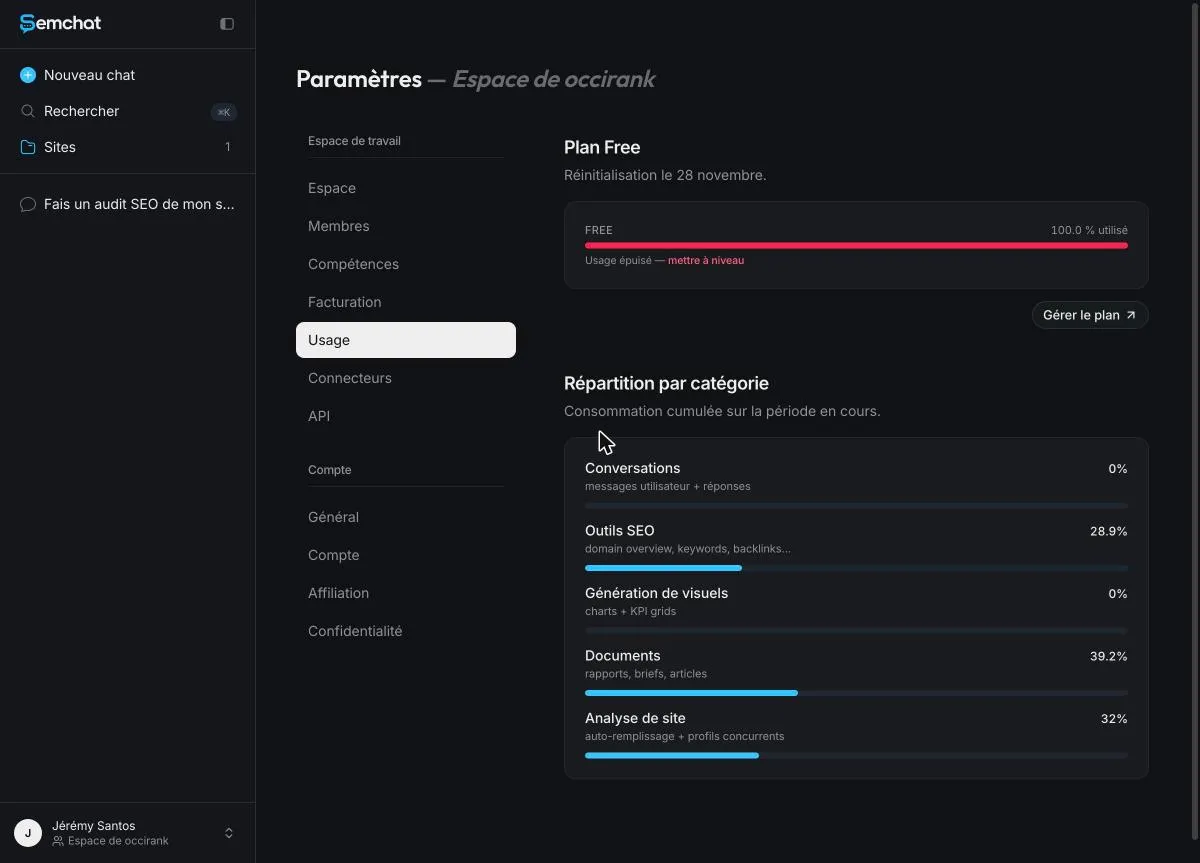 The Free plan quota used up by this one full audit (French interface). Screenshot of the SemChat app (Jérémy’s account, Free plan), October 29, 2026.
The Free plan costs €0, with no credit card; Starter costs €20 a month before tax (pricing page read October 29, 2026). Save your free audit for your main site. Every plan is detailed on our SemChat pricing page.
From audit report to action plan
The audit of my site ended with three actions for the week: create the contact page, make the titles of each language version different, and expand the comparison page.
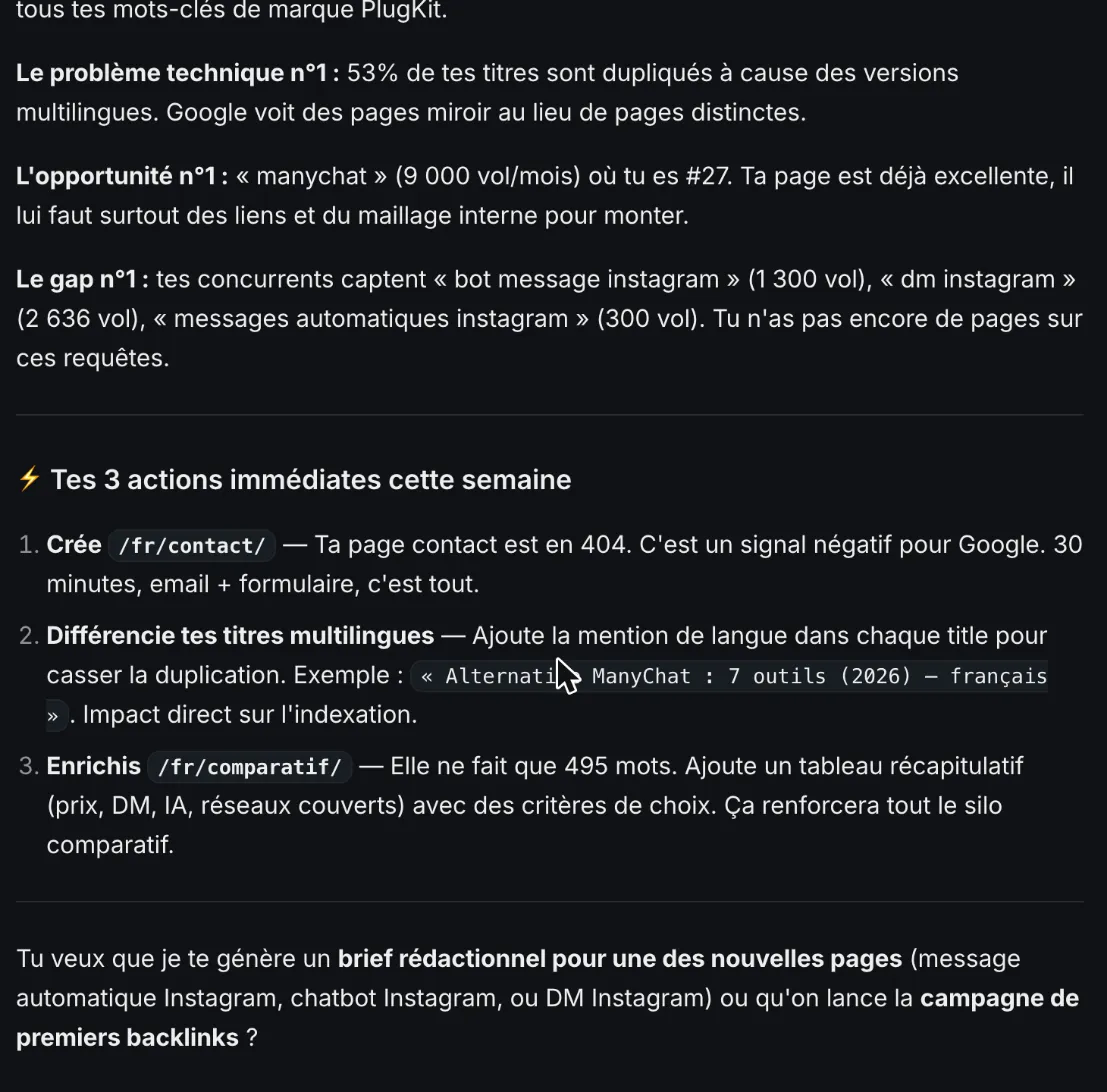 The priority action plan SemChat returned at the end of the audit (French interface). Screenshot of the SemChat app (Jérémy’s account, Free plan), October 29, 2026.
I checked each finding before acting on it. The contact page did return a 404 error: correct. The duplicate titles were real between the American English and British English versions, but those pages are declared to Google as language variants (hreflang), so the problem was smaller than the report suggested. Use the same rule on your WordPress site: check every action, then make it in the right place, the title tag in your SEO plugin, a missing page under Pages.
The full audit, with its limits, is in our SemChat review.
How often to audit a WordPress site
I found no official frequency, and I won’t invent one. Run a full audit after every big change: a new theme, a new SEO plugin, a new host, a new permalink structure, a site migration. In between, a regular look at Site Health and Search Console is enough to catch an alert.
A WordPress SEO audit doesn’t need a developer or a subscription: one box to check, readable permalinks, a single SEO plugin, a fast theme, described images, then your pages one by one.
Frequently asked questions
Which tool should you use for an SEO audit?
Start with what's at hand. WordPress has a Site Health screen under Tools; Google has Search Console and PageSpeed Insights. Rank Math's free plugin includes an SEO analysis that runs basic tests on your homepage (its help page, read October 29, 2026). For a full audit in plain language, SemChat's Free plan ran one on my site on October 29, 2026, but that one audit used the whole monthly quota.
What does technical SEO cover on a WordPress site?
Everything that decides whether Google can reach, read and index your pages: the reading setting that can ask search engines not to index the site, robots.txt, the sitemap at /wp-sitemap.xml since WordPress 5.5, permalinks, HTTPS, server response time and Core Web Vitals. Your theme, your hosting and your plugins all play a part.
What goes in an SEO checklist?
For a WordPress site: the search engine visibility box unchecked, readable permalinks, one SEO plugin set up properly, a theme that passes Google's Core Web Vitals, a working sitemap and robots.txt, HTTPS, updated plugins. Then, page by page: a unique title tag, a meta description, one main heading, alt text on images, and internal links that work.
How do you do a WordPress SEO audit for free?
Open Tools, then Site Health, in your WordPress dashboard: it tells you whether your site uses HTTPS, which permalink structure it has and whether it discourages search engines. Then test your key pages in PageSpeed Insights and check what Google has indexed in Search Console, or with a site: search if your site has fewer than 500 pages, as Google's help suggests.
Let your AI do the chores of getting found online.
10% off your subscription, for life with my link, if you subscribe within 2 weeks of signing up. No code. All about the SemChat promo code
Affiliate link: it costs you nothing extra.
Verified sources
- WordPress: Settings Reading screen, search engine visibility (30/10/2026)
- WordPress: Customize permalinks (30/10/2026)
- WordPress: New XML sitemaps functionality in WordPress 5.5 (30/10/2026)
- WordPress: Site Health screen (30/10/2026)
- WordPress: Manage plugins (30/10/2026)
- WordPress: Media Library screen (30/10/2026)
- Google: About PageSpeed Insights (30/10/2026)
- Google Search Central: Understanding Core Web Vitals and Google search results (30/10/2026)
- Google Search Central: Introduction to robots.txt (30/10/2026)
- Google Search Central: Image SEO best practices (30/10/2026)
- Google Search Central: Understanding page experience (30/10/2026)
- Search Console Help: Page indexing report (30/10/2026)
- Rank Math: SEO Analysis help page (29/10/2026)
- Rank Math: pricing (29/10/2026)
- Rank Math: free online SEO Analyzer (29/10/2026)
- Semrush: SEO and AI search pricing (29/10/2026)
- Semrush for solopreneurs (29/10/2026)
- SemChat pricing (29/10/2026)